Configure Clipboard Capture
Choose what DeskAcross saves to clipboard history, exclude specific apps, and manage how sensitive entries appear.
Open Capture in DeskAcross settings to choose which clipboard items are saved to history. The settings are grouped under Content Types, App Filters, and Privacy.
Choose what to save to history
In Capture → Content Types, turn on the formats you want DeskAcross to save.
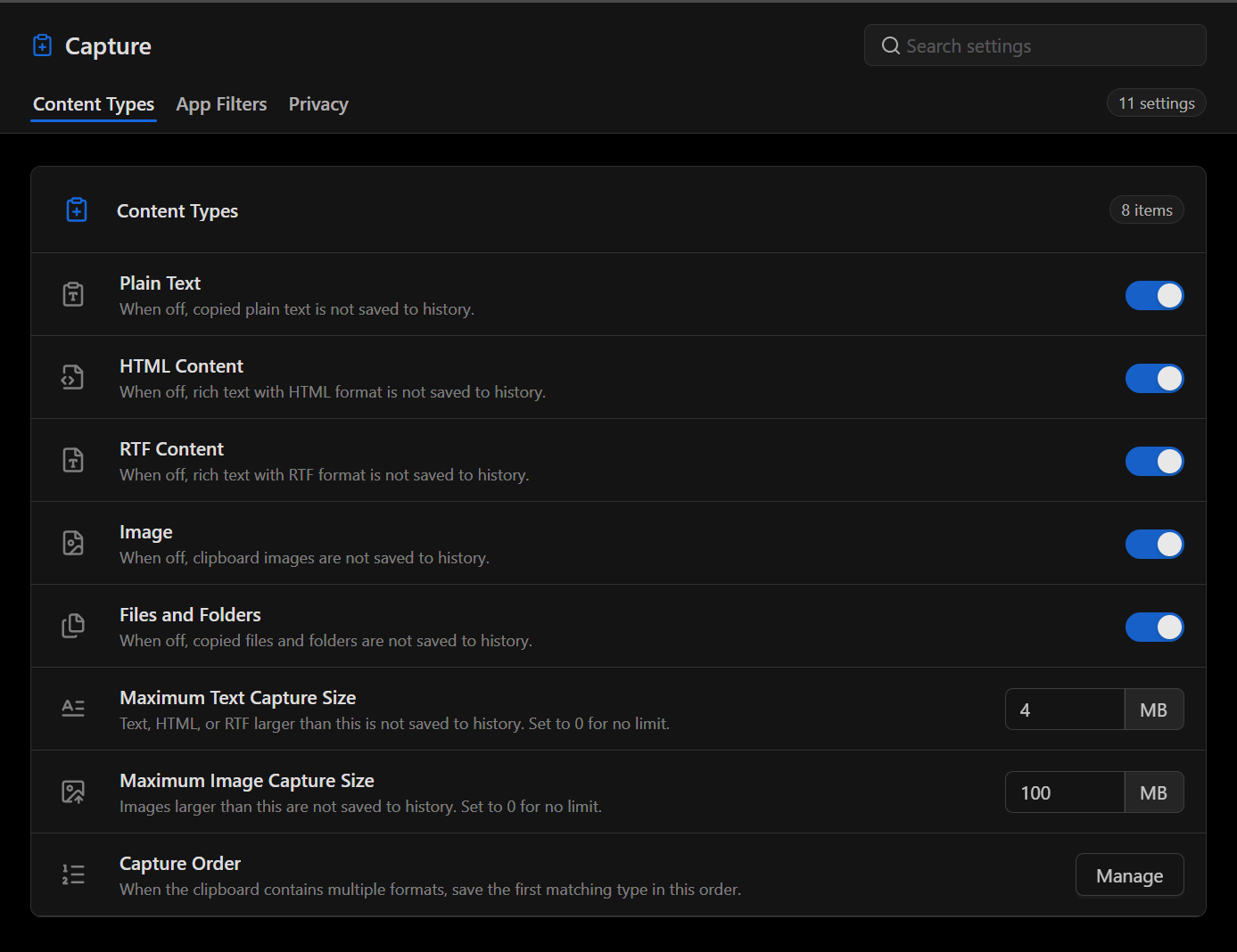
| Setting | What it controls |
|---|---|
| Plain Text | Saves unformatted text. |
| HTML Content | Saves rich text copied in HTML format. |
| RTF Content | Saves rich text copied in RTF format. |
| Image | Saves images copied to the clipboard. |
| Files and Folders | Saves copied files and folders to history. |
| Maximum Text Capture Size | Sets the size limit in MB for plain text, HTML, and RTF. Larger items are skipped. Enter 0 for no limit. |
| Maximum Image Capture Size | Sets the image size limit in MB. Larger images are skipped. Enter 0 for no limit. |
| Capture Order | Determines which format is saved when a single clipboard item contains multiple formats. |
Select Manage next to Capture Order to adjust format priority. DeskAcross saves the first matching type in that order. For example, when an item contains both HTML and plain text, put HTML Content above Plain Text to prioritize the HTML version.
Exclude an app from capture
- Open Capture → App Filters.
- In Available Apps, search for the app you want to exclude.
- Select the checkbox next to the app, then select the right arrow between the lists.
- Confirm the app appears in Ignored Apps.
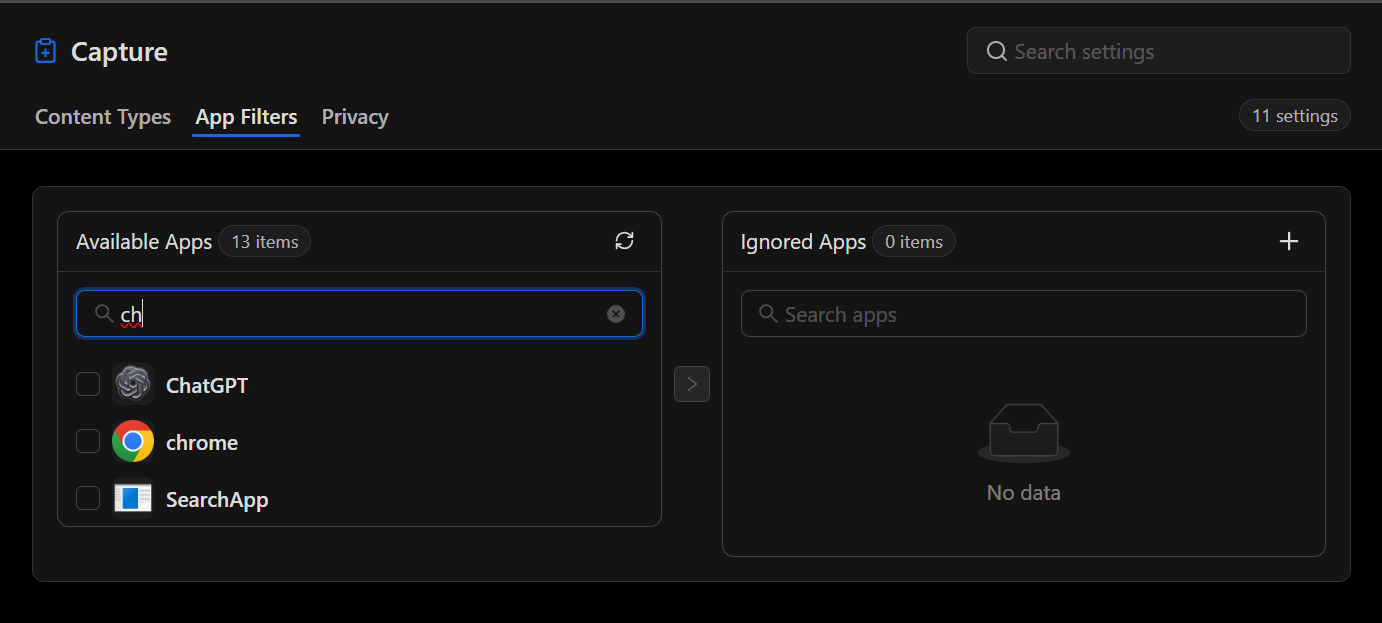
If the app is missing, try the refresh icon next to Available Apps.
Manage sensitive entries
Open Capture → Privacy to control how DeskAcross handles content it recognizes as sensitive.
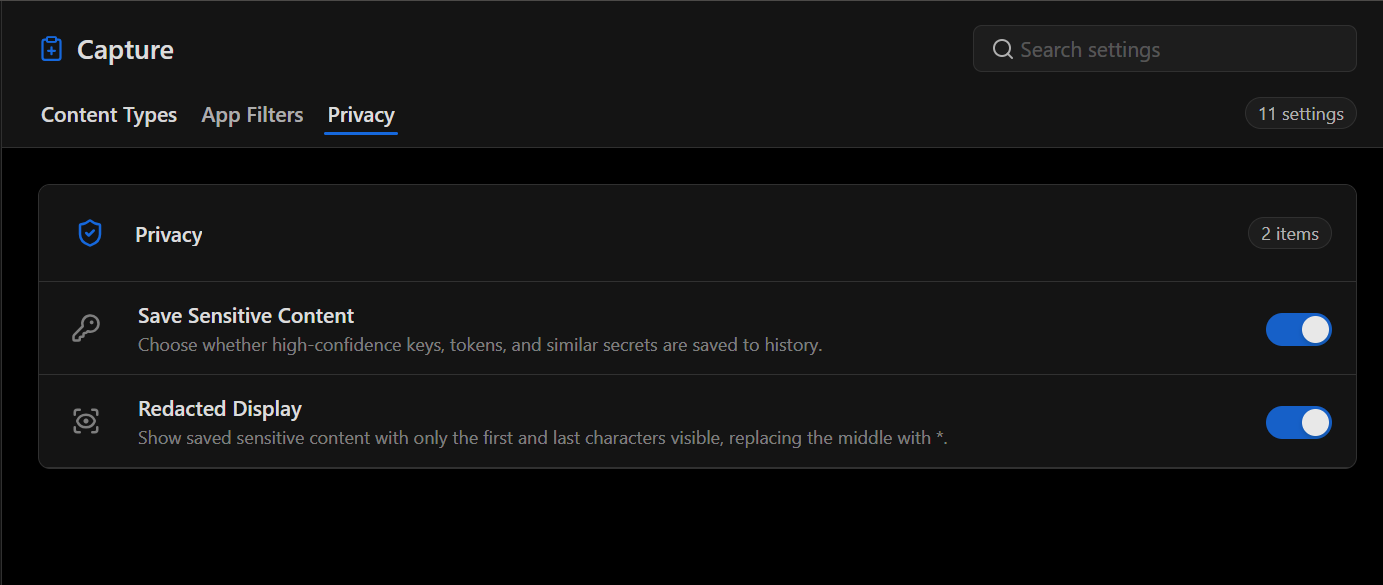
- Save Sensitive Content controls whether high-confidence matches for keys, tokens, and similar secrets are saved to history. Turn it off to skip those matches.
- Redacted Display masks the middle of a saved sensitive entry with asterisks while leaving its first and last characters visible. The entry remains saved in history.
If an item is missing from history
- Check that its format is enabled under Content Types.
- For text or images, compare the item size with the configured limit.
- Check whether the source app appears under Ignored Apps.
- If the item contains a key or token, check Save Sensitive Content.
- If the item appears in a different format than expected, review Capture Order.
Related article
Manage Clipboard History covers retention, favorites, groups, and search.
Did this article help?