Quick Start
Install DeskAcross on two computers, turn on sync with a shared passphrase, and copy on one computer to paste on the other.
This guide takes two computers from a fresh install to a working shared clipboard. It applies to Windows and macOS in any combination.
1. Install DeskAcross on both computers
Download the installer for each computer from the Download page and run it. Start DeskAcross on both computers. The app keeps clipboard history on each computer from the moment it runs, so you can already reopen things you copied earlier on the same machine.
Your operating system may ask for permissions during first launch. Allow them so DeskAcross can read the clipboard and find your other computer on the network.
2. Open settings
Open the preferences window on each computer. You can use the global shortcut shown under Shortcuts → Global Shortcuts. See Use Global Keyboard Shortcuts for the shortcuts and how to change them.
3. Turn on sync and set a passphrase
- Open Sync → Device Sync on each computer.
- Turn on Sync Between Devices.
- Enter the same Sync Passphrase on both computers. DeskAcross uses it to encrypt synced data, so a computer with a different passphrase cannot read your items.
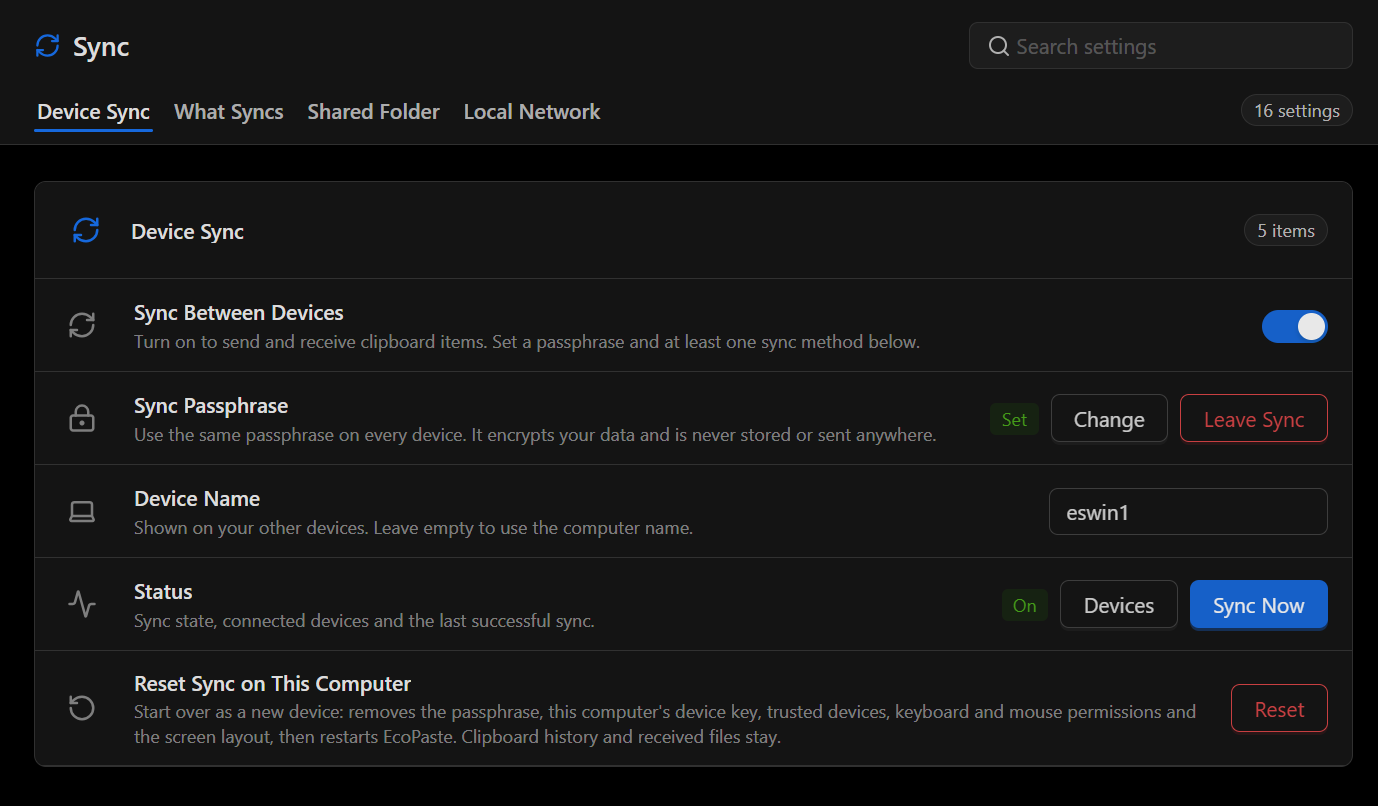
Use Device Name if you want a friendlier name than the computer name to appear on your other devices.
4. Choose a sync method
Enable at least one method on both computers.
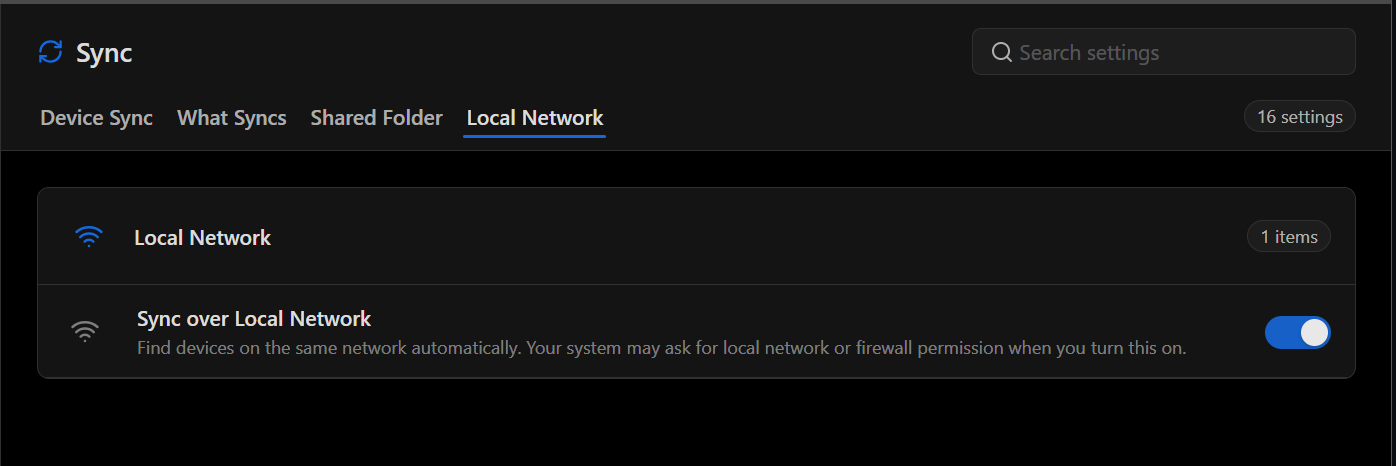
- Local Network. Open Sync → Local Network and turn on Sync over Local Network. Use this when both computers are on the same network. Your operating system may ask for local network or firewall permission.
- Shared Folder. Open Sync → Shared Folder, turn on Sync via Shared Folder, and choose the same folder inside Dropbox, iCloud Drive, or OneDrive on both computers. Use this when the computers are on different networks. Cloud folder sync is part of the Pro and Business plans.
Back in Sync → Device Sync, check Status. Select Devices to confirm the other computer is listed.
5. Copy on one computer, paste on the other
- Copy some text on the first computer.
- On the second computer, open the DeskAcross clipboard window. The item appears in history.
- Select it to paste or copy it.
If nothing arrives, select Sync Now on either computer and check Status again. The checklist in Sync Your Clipboard Across Devices covers passphrase mismatches, network permissions, and the limits under What Syncs.
6. Optional: share a keyboard and mouse
Keyboard and mouse sharing lets you move the pointer from one computer's screen onto the other's. The feature is in development and the app labels it Experimental. It requires local network sync.
- Open Keyboard & Mouse → Keyboard & Mouse Sharing and turn on Share Keyboard and Mouse.
- Under Devices, allow the direction of control you want for the other computer.
- Open Keyboard & Mouse → Screens, select Arrange, and drag the two computers' screens so they share an edge. Select Save.
Share a Keyboard and Mouse explains permissions and screen arrangement in detail.
Where to go next
- Configure Clipboard Capture to choose which formats are saved, exclude apps, and handle sensitive entries.
- Manage Clipboard History for retention, favorites, groups, and search.
- Configure Clipboard Actions to change paste behavior and quick actions.
- Customize the DeskAcross Interface for theme, language, and startup.
- Manage Data, Backups, and Updates to export a backup before moving to a new computer.
Did this article help?