Sync Your Clipboard Across Devices
Set up clipboard sync over a local network or shared folder, choose what syncs, and manage devices.
Open Sync in DeskAcross settings to send and receive clipboard items across computers.
Turn on device sync
- Open Sync → Device Sync on each computer and turn on Sync Between Devices.
- Set the same Sync Passphrase on every computer. DeskAcross uses it to encrypt synced data.
- Enable at least one sync method on the participating computers. Use Local Network for computers on the same network or Shared Folder for a folder managed by your cloud storage app.
- Check Status for the sync state and last successful sync. Select Devices to view devices or Sync Now to start a sync manually.
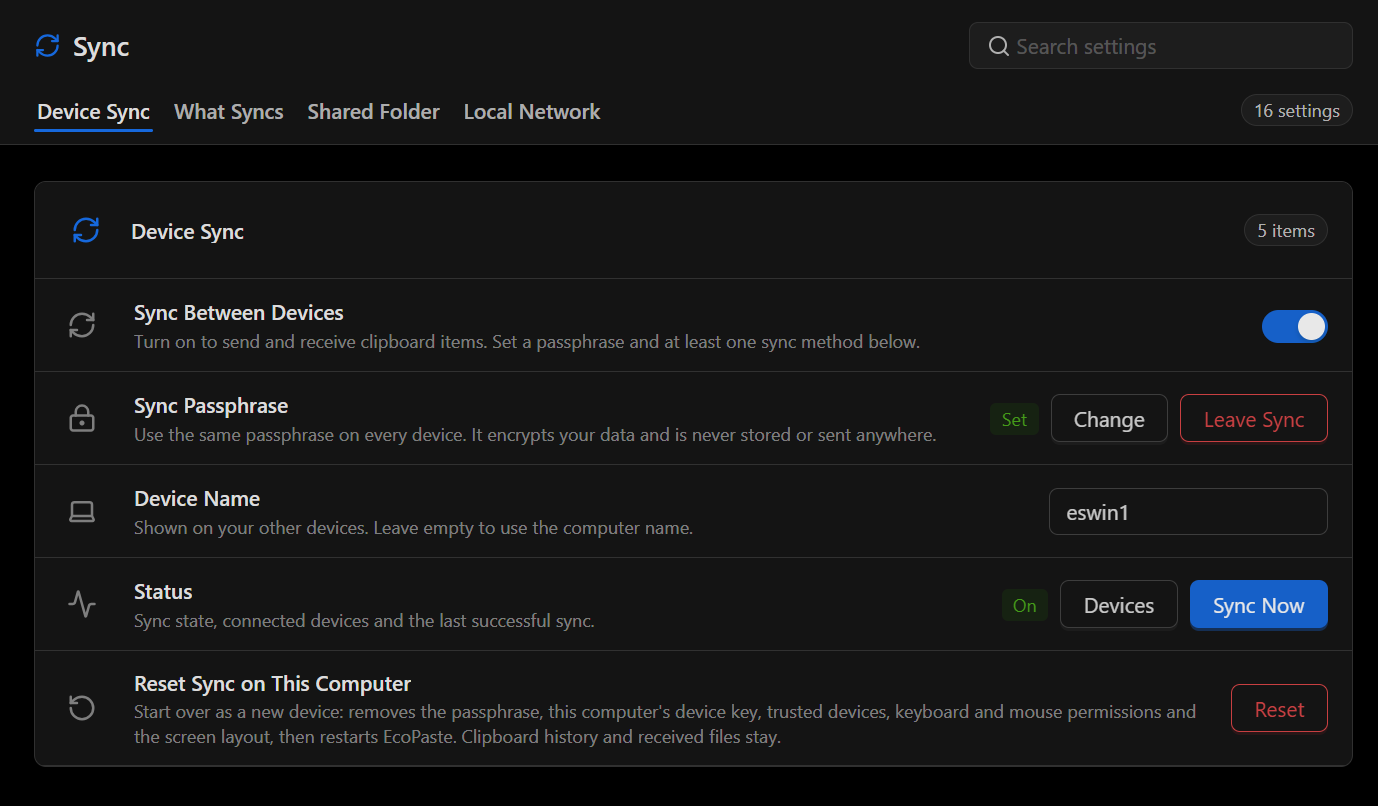
Use Device Name to choose the name shown on your other computers. Leave the field empty to use the computer name. The passphrase row includes Change and Leave Sync when a passphrase is set.
Choose what syncs
Open Sync → What Syncs.
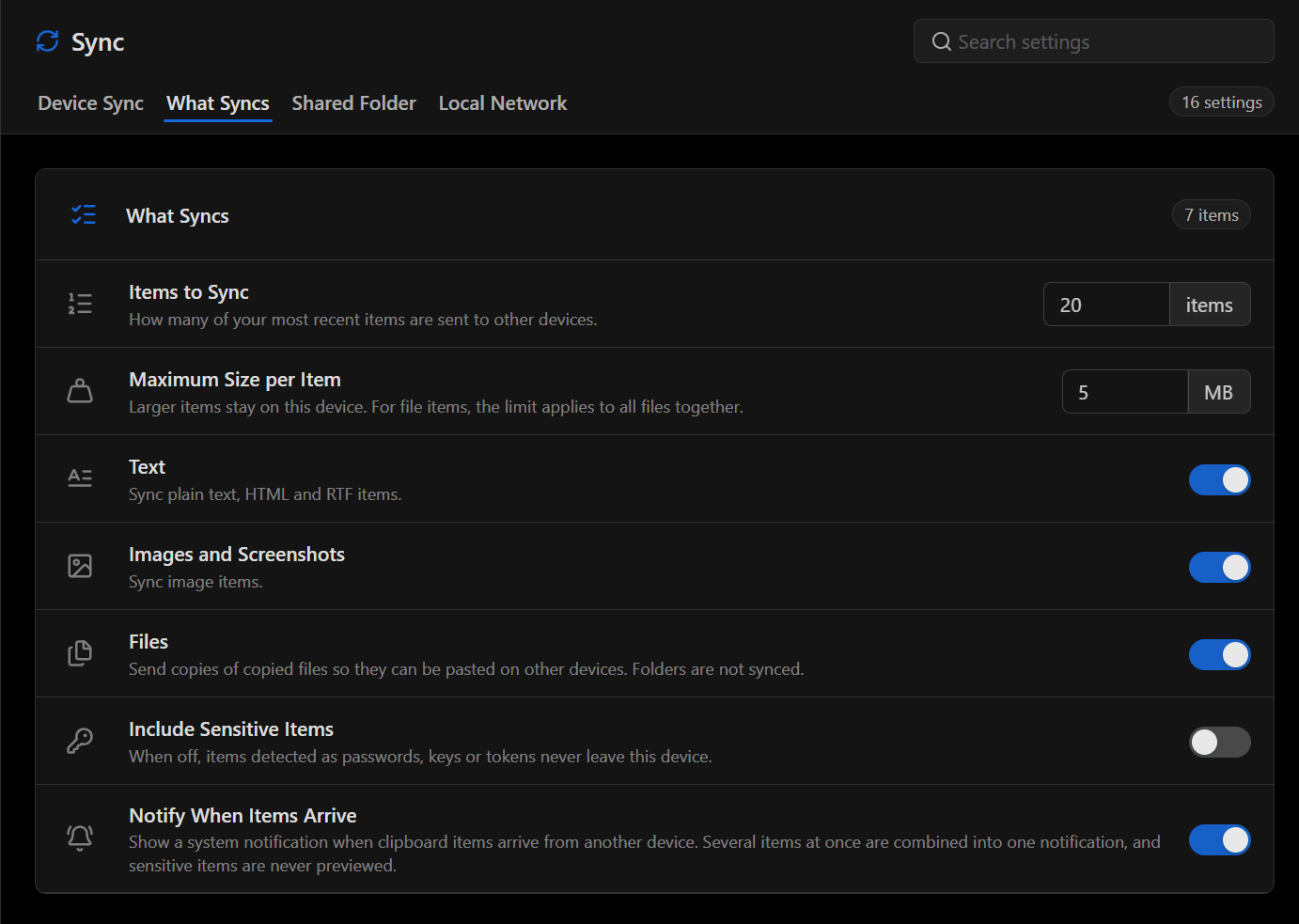
| Setting | What it controls |
|---|---|
| Items to Sync | How many of your most recent clipboard items are sent to other devices. |
| Maximum Size per Item | Items over this limit stay on the current computer. For a clipboard item containing multiple files, the limit applies to their combined size. |
| Text | Syncs plain text, HTML, and RTF. |
| Images and Screenshots | Syncs image items. |
| Files | Sends copies of copied files so you can paste them on another computer. Folders are excluded. |
| Include Sensitive Items | Turn this off to keep items detected as passwords, keys, or tokens on this computer. |
| Notify When Items Arrive | Shows a system notification when items arrive. Multiple items can share one notification, and sensitive items are excluded from previews. |
For settings that control what gets saved to local history, see Configure Clipboard Capture.
Sync using a shared folder
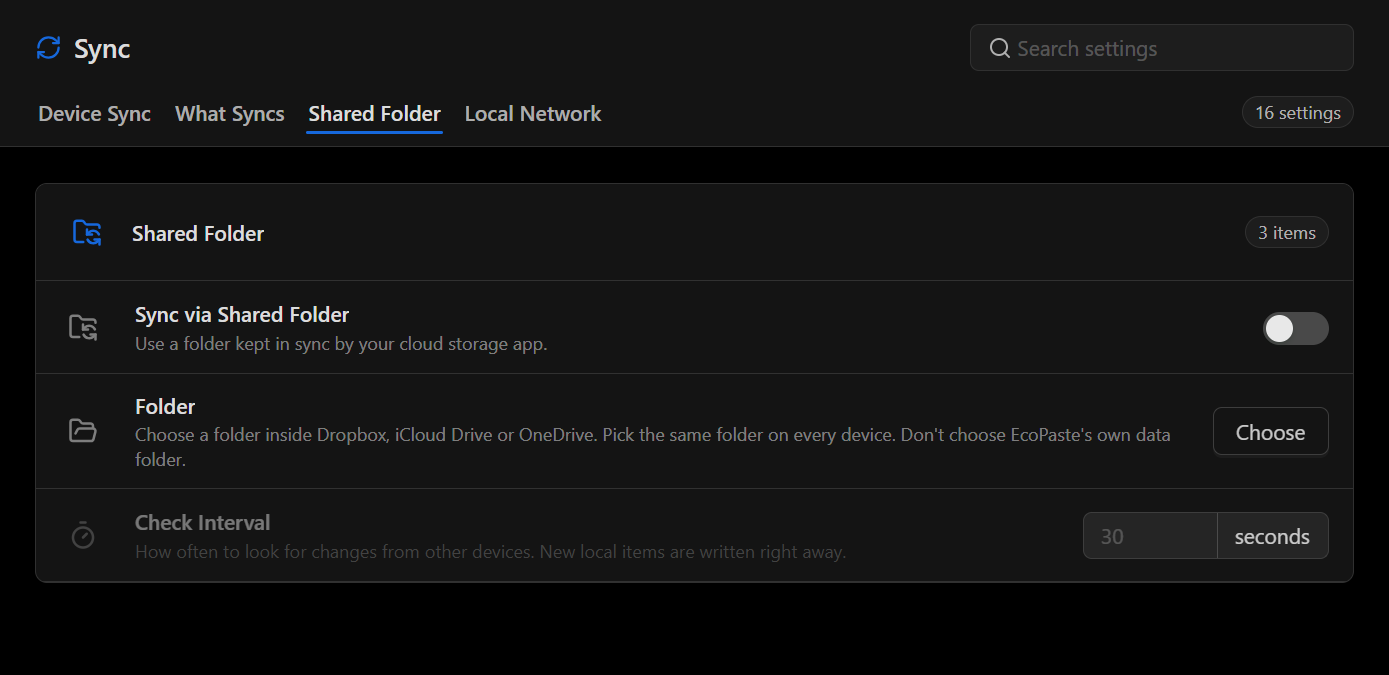
- Open Sync → Shared Folder and turn on Sync via Shared Folder.
- Select Choose and pick the same folder within Dropbox, iCloud Drive, or OneDrive on every participating computer. Choose a folder separate from the app's data directory.
- Set Check Interval to choose how often DeskAcross looks for changes from other devices. DeskAcross writes new local items to the folder immediately.
Sync over a local network
Open Sync → Local Network and turn on Sync over Local Network on each computer. DeskAcross automatically looks for other devices on the same network. Your operating system may ask for local network or firewall permission.
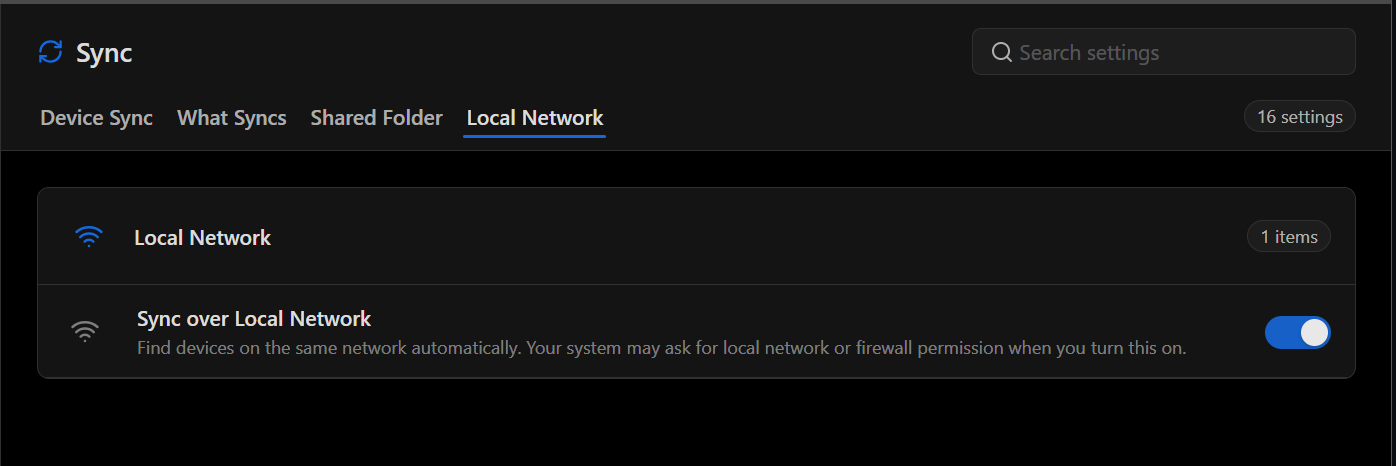
Local network sync is also required to Share a Keyboard and Mouse.
If items do not sync
- Confirm that Sync Between Devices is on and the passphrase matches on both computers.
- For local network sync, check that both computers are on the same network and review any local network or firewall permission prompts.
- For shared folder sync, check that both computers use the same cloud-synced folder.
- Check What Syncs for the item's type, size, recency, and sensitive-content setting. Select Sync Now and check Status again.
Reset sync on this computer
In Sync → Device Sync, select Reset next to Reset Sync on This Computer to start over as a new device. The reset removes the sync passphrase, this computer's device key, trusted devices, keyboard and mouse permissions, and screen layout, then restarts the app. Clipboard history and received files are kept.
Did this article help?