WindowsmacOS
Manage Data, Backups, and Updates
Find local data and logs, export or restore a backup, reset preferences, and choose which updates to receive.
Open Data in DeskAcross settings to find storage locations, manage backups, troubleshoot the app, and configure updates.
Find data and logs or clear unused cache files
Open Data → Storage Locations.
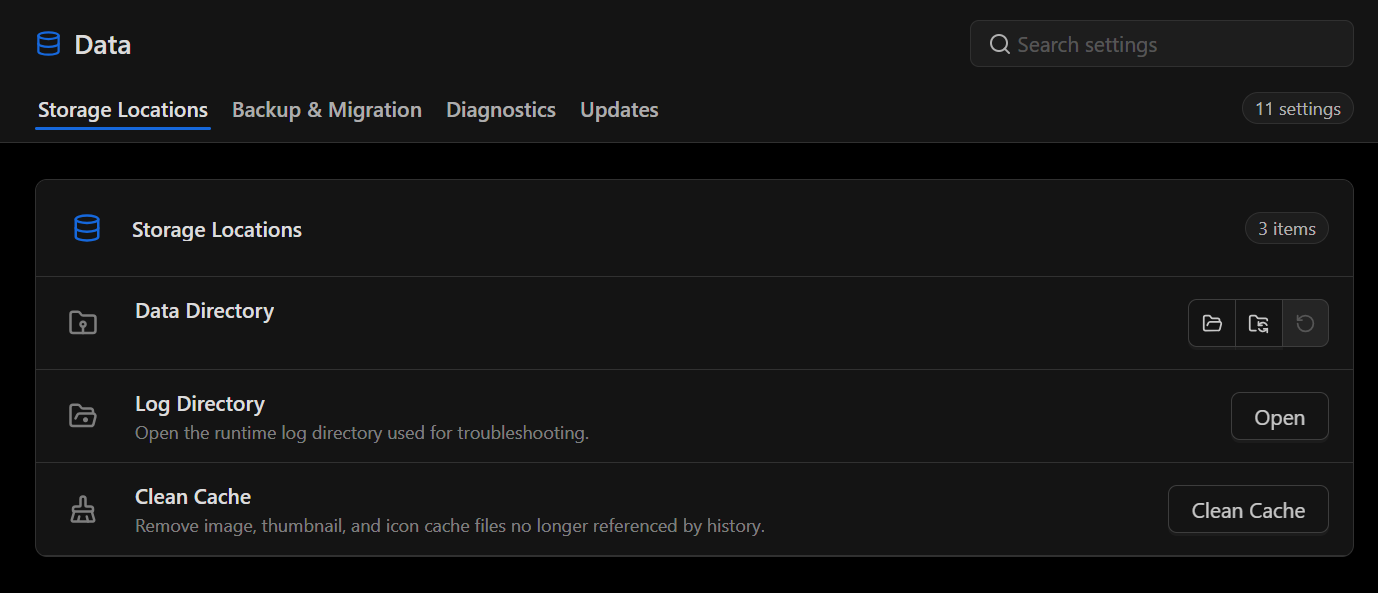
| Setting | What it does |
|---|---|
| Data Directory | Shows the current data folder. Select the folder icon to open it. |
| Log Directory | Select Open to find runtime logs for troubleshooting. |
| Clean Cache | Removes cached images, thumbnails, and icons that history no longer references. |
To remove older clipboard records, see Manage Clipboard History.
Export or restore a backup
Open Data → Backup & Migration.
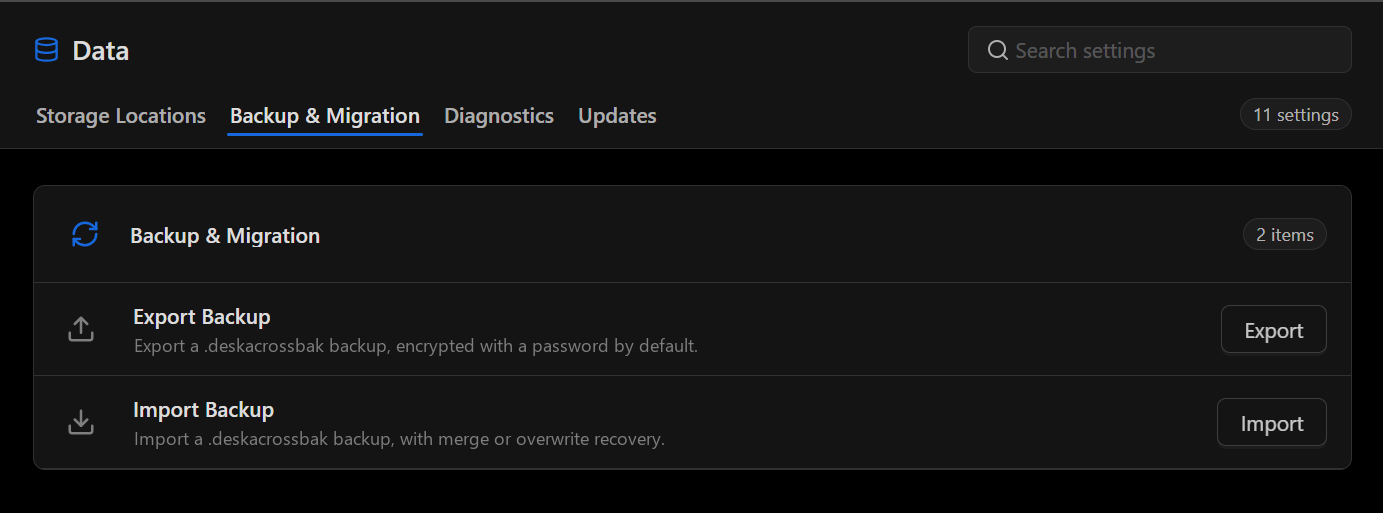
- Export Backup. Select Export to create a backup file. The app uses password encryption by default. Keep the password available for restoration.
- Import Backup. Select Import, choose the backup file, and choose between merge and overwrite recovery. Use merge to bring in backup data while retaining current data. Export a fresh backup before choosing overwrite if you may need the current data later.
View diagnostics or reset preferences
Open Data → Diagnostics.
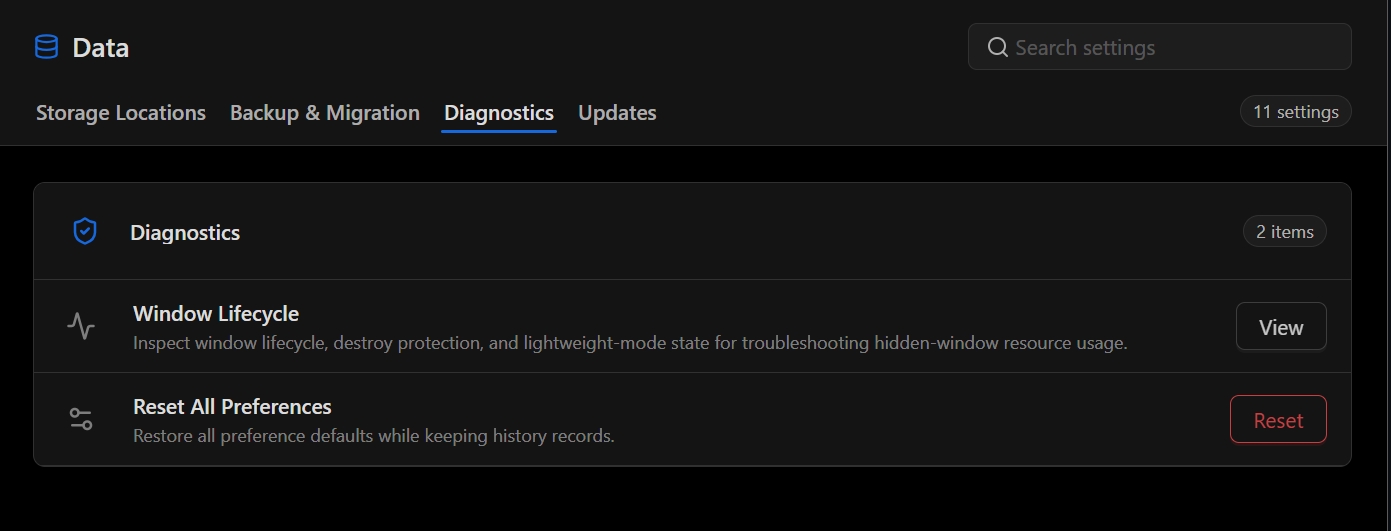
- Window Lifecycle. Select View to inspect window lifecycle, destroy protection, and lightweight-mode state when troubleshooting resource usage while the window is hidden.
- Reset All Preferences. Select Reset to restore preference defaults. Clipboard history records are kept.
Configure update checks
Open Data → Updates.
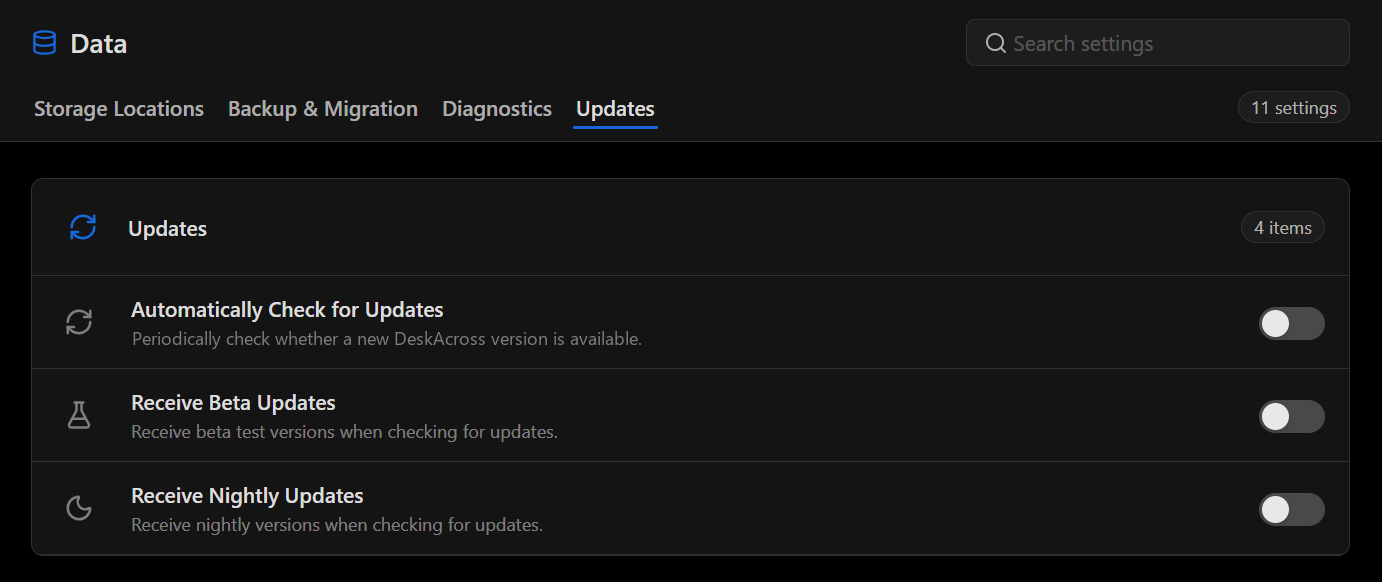
| Setting | What it does |
|---|---|
| Automatically Check for Updates | Periodically checks whether a new version is available. |
| Receive Beta Updates | Includes beta test versions when checking for updates. |
| Receive Nightly Updates | Includes nightly builds when checking for updates. |
Did this article help?