Customize the DeskAcross Interface
Set how the clipboard window opens, preview items, change the theme and language, and manage startup and Windows permissions.
Open Interface in DeskAcross settings to change how the clipboard window looks and behaves.
Choose what opens with the clipboard window
Open Interface → Clipboard Window.
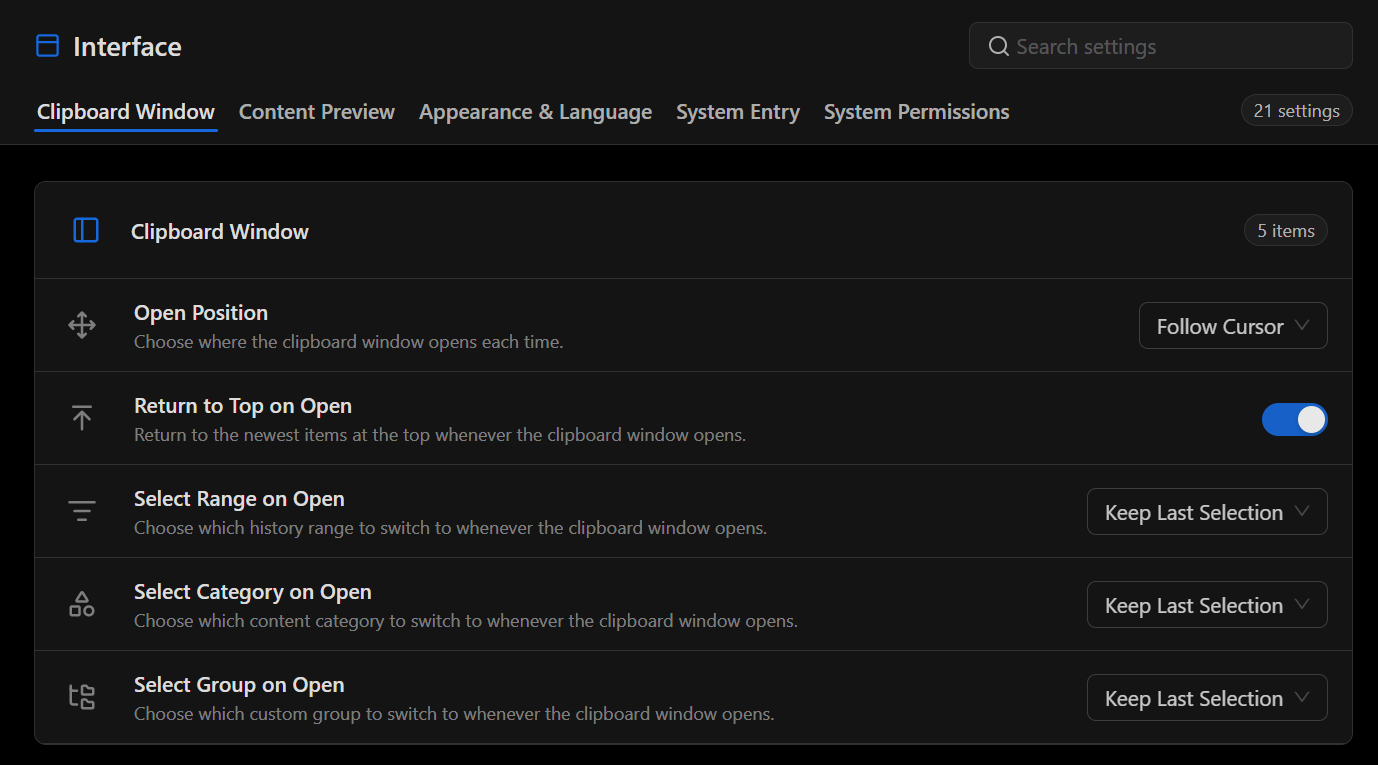
| Setting | What it controls |
|---|---|
| Open Position | Choose where the clipboard window appears. Select Follow Cursor to open it near the pointer. |
| Return to Top on Open | Return to the newest items at the top when the clipboard window opens. |
| Select Range on Open | Choose the history range to show when the window opens. |
| Select Category on Open | Choose the content category to show when the window opens. |
| Select Group on Open | Choose the custom group to show when the window opens. |
Choose Keep Last Selection in any of the range, category, or group menus to reopen the window with the previous selection for that setting. For search and sorting preferences, see Manage Clipboard History.
Preview clipboard content
Open Interface → Content Preview.
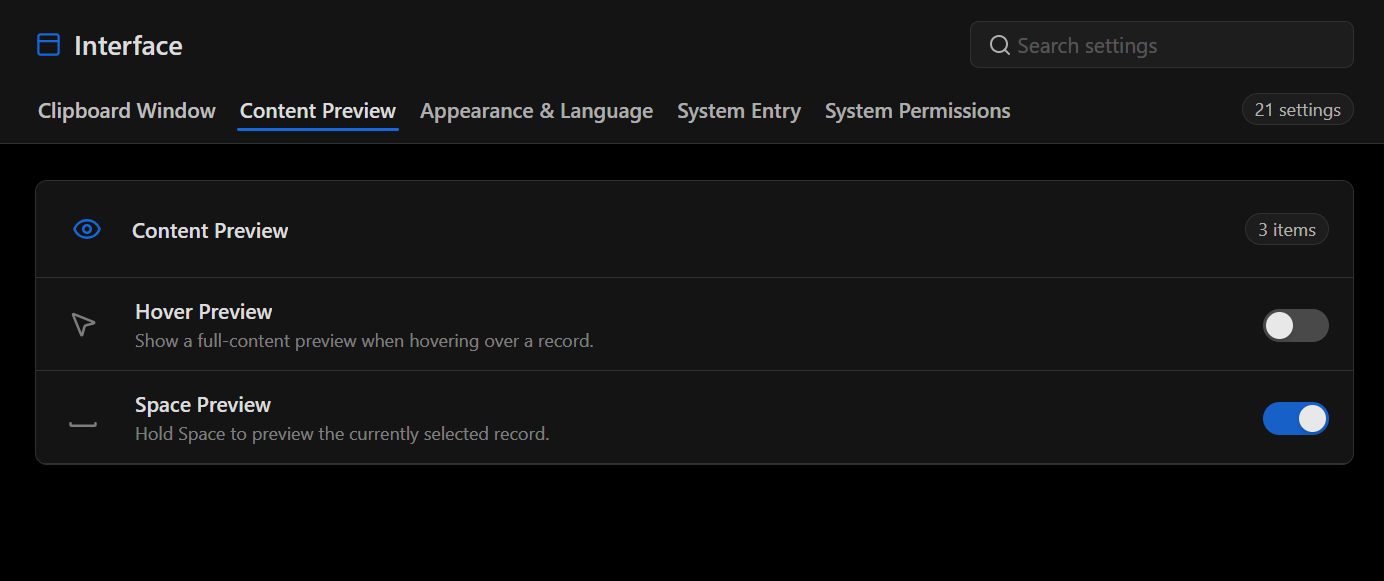
- Hover Preview shows a full-content preview when you move the pointer over a record.
- Space Preview lets you hold Space to preview the currently selected record.
Change appearance and language
Open Interface → Appearance & Language.
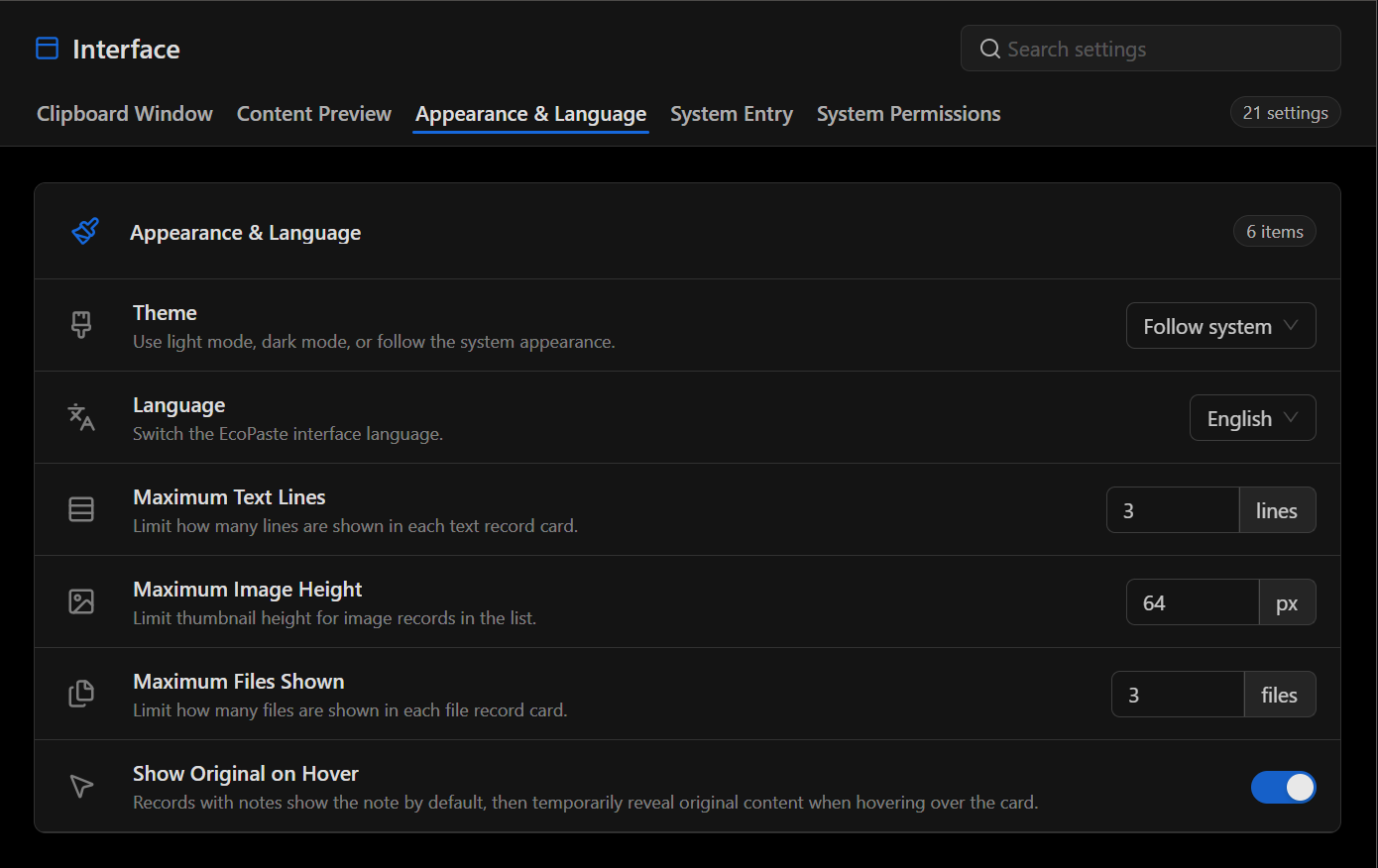
| Setting | What it controls |
|---|---|
| Theme | Choose light mode, dark mode, or Follow system. |
| Language | Choose the language used in the app interface. |
| Maximum Text Lines | Limit how many lines each text record card displays. |
| Maximum Image Height | Limit thumbnail height in the history list, in pixels. |
| Maximum Files Shown | Limit how many files each file record card displays. |
| Show Original on Hover | For records with notes, show the note on the card and temporarily reveal the original content when you hover over it. |
The text, image, and file limits here apply to what the clipboard window displays. For limits on what gets saved, see Configure Clipboard Capture.
Configure startup and system icons
Open Interface → System Entry.
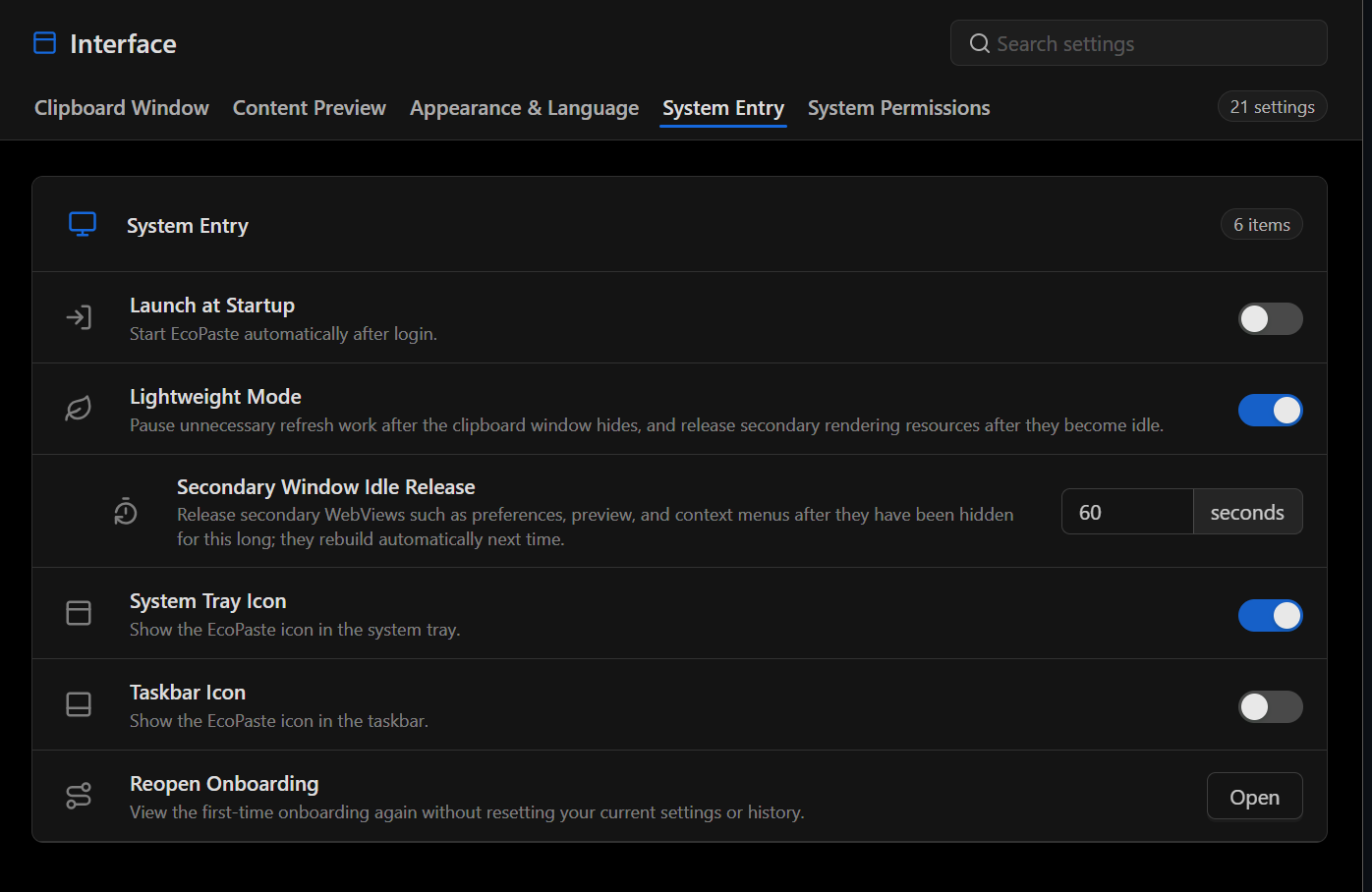
| Setting | What it controls |
|---|---|
| Launch at Startup | Start DeskAcross automatically after you sign in to your computer. |
| Lightweight Mode | Pause unnecessary refresh work while the clipboard window is hidden and release idle secondary rendering resources. |
| Secondary Window Idle Release | Set how long secondary views such as preferences, previews, and context menus stay loaded after they are hidden. The app rebuilds them when you open them again. |
| System Tray Icon | Show the app icon in the system tray. |
| Taskbar Icon | Show the app icon in the taskbar. |
| Reopen Onboarding | Select Open to view first-time onboarding again. Your current settings and clipboard history are kept. |
Manage administrator privileges on Windows
Open Interface → System Permissions.
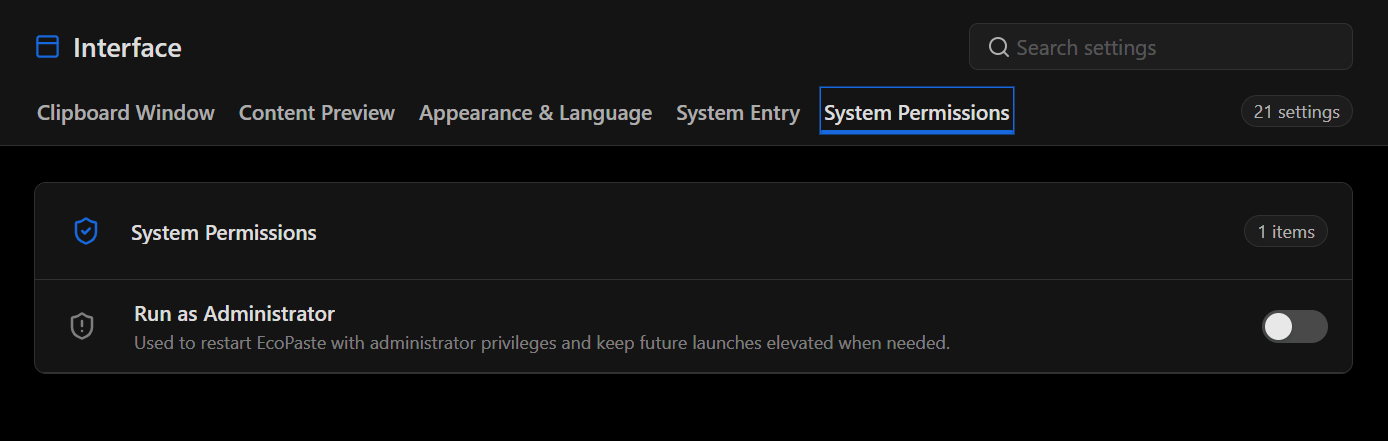
Use Run as Administrator when administrator privileges are needed. This setting restarts the app with elevated privileges and can keep future launches elevated.
Did this article help?